Free Lesson Plan Generator: How to Get Real Classroom-Ready Plans in 5 Minutes
A step-by-step walkthrough of using a free AI lesson plan generator to produce a classroom-ready plan in under 5 minutes — with concrete prompts, a worked example, and an editable output.
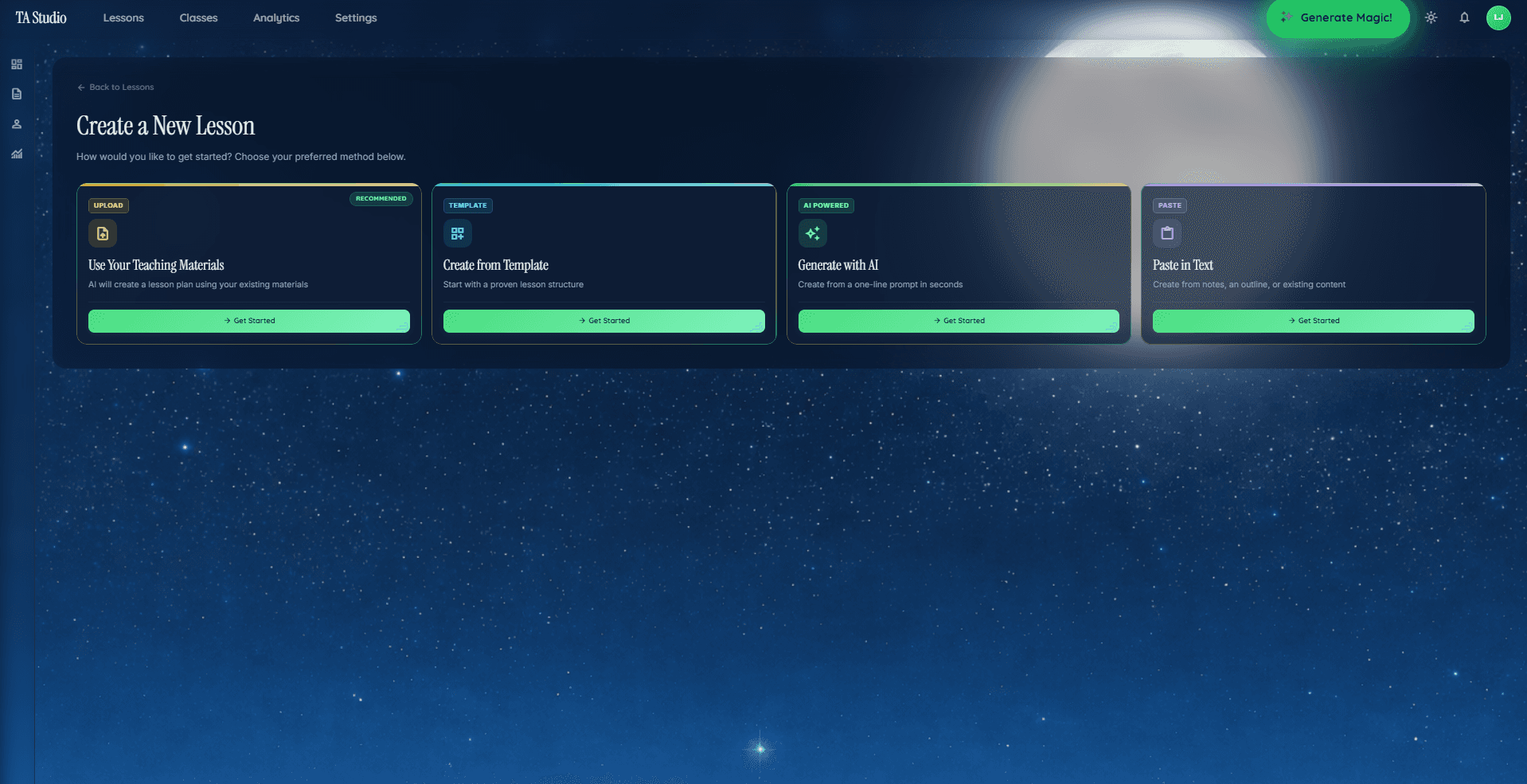
Most teachers who try a free lesson plan generator for the first time follow the same arc. They type in a topic, hit generate, read the output, and quietly close the tab. The plan is technically a plan — there is a title, some objectives, a list of activities — but it is not something you would actually run on Monday. The activities are generic. The assessment is a shrug. The pacing is invented. So the teacher goes back to their own lesson notes and loses an hour they did not have.
This walkthrough is aimed at breaking that cycle. The short version is that a free generator produces shallow output when you give it a shallow prompt, and the fix is a four-input prompt that forces the generator to commit to a method, a grade, a duration, and a topic — in that order of importance. Below, we walk through the four-input prompt, run a real worked example on Grade 7 photosynthesis using retrieval practice, show a full classroom-ready plan, and then repeat the same pattern across three other grade-and-method combinations so you can see how the structure shifts with inputs.
If you want a broader comparison of which tools are actually usable for free — as opposed to which ones market themselves that way — see Best Free AI Lesson Planner for Teachers (2026). If the retrieval practice structure used in the worked example is new to you, Retrieval Practice Lesson Plan: Template + 10 Classroom Examples goes deeper on the pedagogy.
Why most "free generators" waste time
Free generators fail in four specific ways, and each one has a named cause you can fix with better inputs.
1. Topic-only prompts. The default user flow on most free generators is a single text box: "Enter a topic." If you type "fractions," the tool has to guess at the grade, the duration, the method, the prior knowledge, and the assessment format. It will pick middle-of-the-road defaults — often a generic "introduce, practise, review" structure — because that is the safest guess when five inputs are missing. A safe guess is exactly the wrong output for a real classroom.
2. No pedagogical structure. Without a named teaching method, the generator produces a plan shaped like a template rather than a lesson. You get a warm-up, a main activity, and a wrap-up, but the sequence is not built around how learning actually happens for that method. An explicit-instruction lesson and an inquiry-based lesson on the same topic have almost nothing in common structurally. A tool that does not ask for a method cannot produce either one well.
3. Placeholder assessments. Shallow generators end lessons with "exit ticket: students summarise what they learned." That is not an assessment — it is a prompt. A real exit ticket is a specific question that measures the lesson's objective in under three minutes. Without explicit assessment generation, you get the former and have to write the latter yourself.
4. Generic activities. "Group discussion," "pair-share," "worksheet practice" — these are activity categories, not activities. A classroom-ready activity tells you the grouping, the stimulus material, the student task, the timing, and the teacher move. Generic output skips three of those five.
All four failure modes share one root cause: the prompt did not constrain the generator enough. The fix is the same in every case: give it more inputs.
The 4-input prompt
The four inputs below, in this order, produce dramatically different output than a topic-only prompt. Each one closes down a whole class of ambiguity the generator would otherwise have to guess at.
1. Topic. The specific content you are teaching. Not "fractions" but "adding fractions with unlike denominators using a common denominator." The more specific the topic, the more the activity stage can commit to real content rather than hedged language.
2. Grade. The grade or grade band the lesson is for. This controls vocabulary, attention span, assumed prior knowledge, and assessment format. The same topic looks radically different at Grade 3 and Grade 10.
3. Duration. The length of the lesson in minutes. This is the hardest input for the generator to guess, because it directly determines the number and length of each phase. A 30-minute lesson and a 60-minute lesson on the same topic are not the same lesson scaled; they use different structures.
4. Teaching method. The pedagogical approach the lesson is built around. This is the input that most free tools skip entirely, and it is the one that matters most. Retrieval practice, explicit instruction, inquiry-based, cooperative learning, flipped, mastery, problem-based, project-based, and gamified each produce a structurally different lesson. Pick the method that matches your instructional goal for the lesson.
Fill-in-the-blanks prompt skeleton
Paste this into any generator that lets you write a custom prompt, or use it as the shape of your inputs in a structured tool:
Create a classroom-ready lesson plan on [TOPIC] for [GRADE] students. The lesson should last [DURATION] minutes and be built around the [METHOD] teaching method. Include a clear learning objective written in observable language, a sequenced activity schedule with timings for each phase, specific student-facing tasks rather than activity categories, and an exit ticket that directly assesses the objective in under 3 minutes.
That final sentence — the one requiring observable objectives, per-phase timings, named tasks, and an assessment tied to the objective — is what separates a lesson plan from a template.
Worked example: Grade 7 photosynthesis, 50 minutes, retrieval practice
Here is the four-input prompt filled in for a real lesson, followed by the full generated output. This is the kind of plan you should expect back; if your generator produces less than this, it is under-constrained.
Inputs
- Topic: Photosynthesis — reactants, products, and the location within the plant cell
- Grade: 7
- Duration: 50 minutes
- Method: Retrieval practice
Learning objective
Students will be able to name the reactants and products of photosynthesis, state where in the plant cell the reaction takes place, and recall the simplified word equation from memory in a low-stakes retrieval quiz with at least 8 of 10 items correct.
Materials
- Printed retrieval quiz sheet (same 10 questions, used twice)
- Projected photosynthesis diagram with labelled chloroplast
- Mini-whiteboards and markers
- Exit ticket half-sheet (1 question)
Lesson structure
Phase 1 — Warm-up retrieval quiz (5 minutes)
Students work silently for 4 minutes on a 10-item retrieval sheet covering reactants, products, location, and the word equation. No textbooks, no partner help. The questions are short-answer and low-stakes — no grade is recorded. In the remaining 1 minute, students put their answers face-down on the desk.
The teacher circulates and notes which items look weakest across the room. Do not mark yet. The warm-up is a diagnostic, not a graded test.
Phase 2 — Mini-lesson: correcting the warm-up (15 minutes)
The teacher projects a labelled chloroplast diagram and walks through the correct answers to the quiz in the order they appeared on the sheet. Key moves:
- Name each reactant (carbon dioxide, water) and product (glucose, oxygen) out loud, pointing to where in the diagram it enters or leaves.
- State explicitly that the reaction takes place in the chloroplast, and inside the chloroplast, specifically in the thylakoid membranes (for the light reactions) and the stroma (for the sugar-producing stage). For Grade 7, the chloroplast-level answer is sufficient; the sub-organelle distinction is an extension.
- Write the word equation on the board: carbon dioxide + water → glucose + oxygen. Have students echo it chorally once.
- Flag the two most common errors observed during the warm-up (these will typically be: confusing the direction of the arrow, or swapping carbon dioxide for oxygen).
Students self-mark their warm-up sheets as the teacher reviews, writing a small dot next to any item they missed. This dot is the signal for which items to attend to most during the re-study phase.
Phase 3 — Guided practice: whiteboard retrieval (15 minutes)
Students work on mini-whiteboards. The teacher calls out a question; students write an answer, hold the board up, and the teacher scans for accuracy. Pace: roughly 90 seconds per question, including feedback.
Questions (in order, selected to hit the objectives twice):
- Name one reactant of photosynthesis.
- Name one product of photosynthesis.
- Where in the plant cell does photosynthesis occur?
- Write the word equation.
- Which gas does the plant release?
- Which gas does the plant take in?
- What is the main sugar produced?
- Name a part of the chloroplast.
- Draw an arrow showing the direction of the reaction.
- In one sentence, say what photosynthesis does for the plant.
After each question, a 5-second corrective cue if the boards are mixed ("check the direction of the arrow — reactants on the left"). No long re-teach interruptions.
Phase 4 — Independent check: second retrieval (10 minutes)
Students complete the same 10-item sheet from the warm-up, with the questions re-ordered. Silent, individual, no help. They compare their second-attempt scores against their first-attempt scores privately.
The teacher collects the second sheet at the end. The comparison first-attempt-to-second-attempt is the measure of lesson impact, not absolute scores.
Phase 5 — Exit ticket (5 minutes)
Half-sheet, single completion prompt plus two one-word questions — deliberately low-stakes and fast, so it maps cleanly to the "8 of 10 items on a low-stakes retrieval quiz" objective rather than asking for a mini constructed response:
Complete the word equation, then answer two one-word questions:
- carbon dioxide + water → ____ + ____
- Where in the plant cell does this reaction happen?
- Which gas do plants release during photosynthesis?
Students hand the slip in as they leave. The whole ticket takes under 90 seconds and gives you a clean read on whether each student internalised the word equation and the location. The teacher uses these to plan re-teach moments for the next lesson — typically a 5-minute opener on whichever component (reactants, products, or location) was weakest in the tickets.
A plan like this — real content, specific tasks, timed phases, a measurable assessment — is what you should demand from a free generator. Anything less is a template dressed as a plan.
Editing tips: making the generated plan yours
An AI-generated plan is a starting point, not a finished product. These five edits take under 5 minutes and dramatically increase classroom fit.
1. Adjust vocabulary to local dialect or curriculum language. If your district uses "carbon dioxide" but your textbook uses "CO₂," swap to match. If your curriculum names organelles differently (e.g. "leaf cells" before "chloroplast"), align the plan with the language students will see on assessments.
2. Swap the exit ticket format. If your students respond better to a quick-draw ticket than a written sentence, swap the 2–3 sentence prompt for "draw and label the reactants and products." The underlying measurement — can they name the four substances and the location — stays identical.
3. Add ELL or special-education support. For English language learners, pre-teach the four vocabulary terms (reactant, product, chloroplast, equation) in the opening minute, then layer in retrieval-friendly scaffolds so English production is not the bottleneck. Hand out a bilingual word-equation card at the start of Phase 3 guided practice so students can retrieve the answer in their home language first and then map it to the English label. Pair each ELL student with a same-L1 peer for the mini-whiteboard round — peer translation is faster and more culturally comfortable than teacher-to-student translation, and it keeps the 90-second pacing intact. On the exit ticket, accept L1 answers with the English label added alongside rather than gating the whole retrieval on English production. A short sentence frame — "Photosynthesis happens in the ____. The plant uses ____ and ____ to make ____ and ____." — gives any written response a predictable shape without prescribing the content. For students with working-memory support needs, provide a partially-completed word equation in Phase 3 rather than a blank one. The method logic is unchanged; only the scaffolding shifts.
4. Extend the warm-up for a struggling class. If the first retrieval shows more than half the class below 5/10, extend Phase 2 by 5 minutes using the time from Phase 4, and make the second retrieval open-book. The lesson still tests retrieval; it just does so at a lower floor.
5. Localise the example. Replace generic plants with a locally visible species — an oak in the UK, a jacaranda in Southern Africa, a maple in Canada. Same reactants and products, same word equation, but students connect the abstract reaction to something they walk past on the way home.
Each of these edits preserves the pedagogical structure — two retrieval rounds separated by re-study — while adjusting the surface to your specific class. That is the distinction that matters: edit the surface, preserve the structure.
Grade and method swap examples
The same four-input prompt, applied to different inputs, produces structurally different lessons. These three variants show what shifts.
Variant A — Grade 3 math, multiplication facts, explicit instruction (40 minutes)
Inputs: Topic = "the 4× times table"; Grade = 3; Duration = 40 min; Method = explicit instruction.
Structure shift: the lesson opens with a teacher-modelled worked example of 4×3 using arrays drawn on the board, moves to guided practice of 4×2 through 4×6 with choral response, and ends with independent worksheet practice of mixed facts. Exit ticket: write 4×7 with the array drawn below it. The I-Do, We-Do, You-Do sequence of explicit instruction replaces the two-retrieval structure — because the lesson is introducing the content, not strengthening recall of already-taught content.
Variant B — Grade 10 English, thesis writing, inquiry-based (60 minutes)
Inputs: Topic = "what makes a strong thesis statement"; Grade = 10; Duration = 60 min; Method = inquiry-based.
Structure shift: the lesson opens with three sample thesis statements of varying quality and a driving question ("which of these would be easiest to defend in an essay, and why?"). Students analyse the samples in pairs, extract criteria, share with the class, and then draft their own thesis on a teacher-provided prompt, revising against the class-generated criteria. Exit ticket: the final thesis statement plus one sentence identifying which criterion it best meets. Inquiry-based replaces teacher modelling at the start with student pattern-detection.
Variant C — Kindergarten literacy, letter sounds, gamified (25 minutes)
Inputs: Topic = "the letter sound /s/"; Grade = K; Duration = 25 min; Method = gamified.
Structure shift: the lesson runs as a three-round "sound hunt" game. Round 1: students hold up a card when they hear the /s/ sound in a word the teacher says. Round 2: students in pairs search picture cards for five /s/-beginning objects. Round 3: class "sound parade" where each student calls out one /s/ word as they walk across the mat. Exit ticket: an oral thumbs-up / thumbs-down response to the teacher saying a word and asking "does that start with /s/?" The gamified frame replaces silent practice with active competitive engagement — age-appropriate for K.
Same prompt skeleton, three different grades, three different methods, three structurally different lessons. The four inputs do almost all of the work.
Saving the plan to Google Classroom or OneNote
Once the plan is generated, there are two paths to making it live in front of students.
Export to PDF or PPTX, then upload to Google Classroom. In TAyumira, the Export button in the top toolbar opens a menu with PDF, PowerPoint (.pptx), and PNG/JPEG options — pick PDF or .pptx and save to Drive. In Classroom, open the class → Classwork → Create → Assignment. Attach the PDF (or PPTX) from Google Drive. Set the due date. Use Assignment for student-facing tasks (including exit ticket submission) or Material for reference copies.
Export to PPTX, then drop into OneNote as a Class Notebook page. In PowerPoint desktop: File > Export > Change File Type > Save as Another File Type > JPEG File Interchange Format (one slide per image). In OneNote: open the target class-notebook page → Insert > Pictures (or drag the JPEGs directly onto the page). Place under "Content Library" for reference, or "Collaboration Space" if you want students to annotate live.
Run live from the presenter. If you are on TAyumira's paid tier with the live presenter, you can skip the export entirely and present the lesson directly from the tool, with student-facing polls and quizzes built in. For the free tier, export is the path.
Frequently asked questions
Is a free lesson plan generator actually usable, or just a demo?
It depends entirely on the inputs you give it and whether the tool supports a real teaching method. A topic-only generator is a demo. A four-input generator that lets you name a teaching method is usable. If a free tool asks you for method, grade, duration, and topic, the output will be usable; if it asks you only for topic, the output will be thin regardless of which tool you pick.
How is this different from just asking a chatbot?
A general-purpose chatbot can produce a lesson plan if you write the four-input prompt above. What it will not do reliably is maintain a consistent pedagogical structure across edits — ask it to tweak the exit ticket and the phase timings often drift, or the method logic subtly breaks. A dedicated generator keeps the pedagogy structure stable across edits, which matters when you are iterating toward a plan you actually trust.
Do I need to know the teaching method in advance?
Not exactly, but you should have an instructional goal in mind, and the goal maps to a method. If students have never seen the content, use explicit instruction. If they have seen it and need recall to strengthen, use retrieval practice. If you want them to discover a pattern, use inquiry-based. The method choice is an instructional decision, not a technical one — the generator does not make it for you.
What if the output is still weak?
Make the inputs more specific. "Fractions" is a weak topic; "adding fractions with unlike denominators using a common denominator" is a strong one. "Grade 6" is a weak grade marker if your class sits on a split; "Grade 6 at the pre-algebra readiness level" is stronger. The generator trades directly in input specificity; if output feels generic, tighten the input.
Start generating classroom-ready plans free
TAyumira's free tier lets you generate three complete lesson plans per month using the four-input prompt and the full pedagogy library — retrieval practice, explicit instruction, inquiry-based, cooperative learning, flipped, mastery, problem-based, project-based, and gamified. Exit tickets, assessments, and PDF/PPTX export are all included on the free tier. No credit card required.
For a library of 25 ready-to-generate templates across grades and methods, see Free AI Lesson Plans: 25 Ready-to-Use Templates by Grade.